How do I add more than 10 seats to my CodeRabbit organization?
Last updated: February 2, 2026
Context
When managing your CodeRabbit organization subscription, you may need to add more than 10 user seats. The seat selection interface may not immediately appear to support quantities above 10, as the dropdown menu only displays options from 1 to 10.
Answer
You can add more than 10 seats by typing the desired number directly into the seat quantity field, even though the dropdown only shows options up to 10.
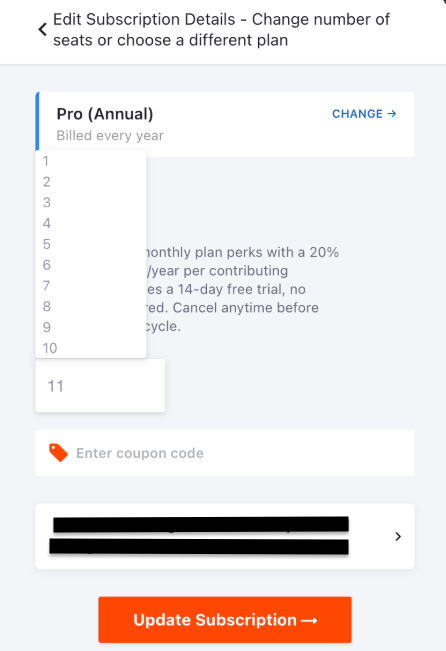
To add more than 10 seats:
Navigate to your subscription settings
Open the "Edit Subscription Details" modal
Click on the seat quantity field (which appears as a dropdown)
Type the desired number of seats directly into the field
Click "Update Subscription" to save your changes
Summary: The seat quantity field functions as both a dropdown and a text input, allowing you to enter any number above the dropdown's maximum of 10 seats.